Embedded Task Lists
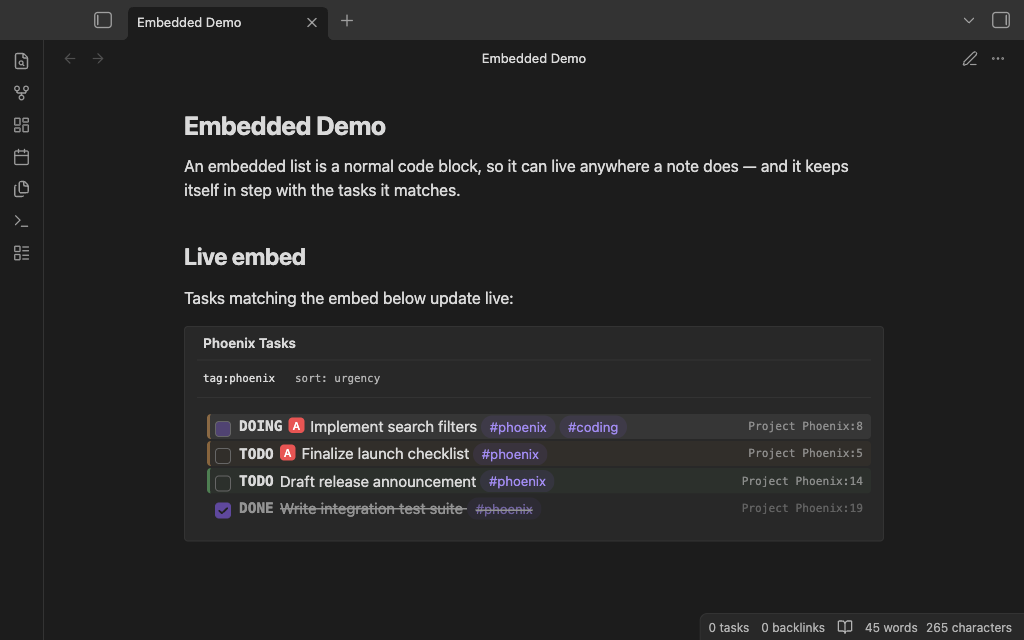
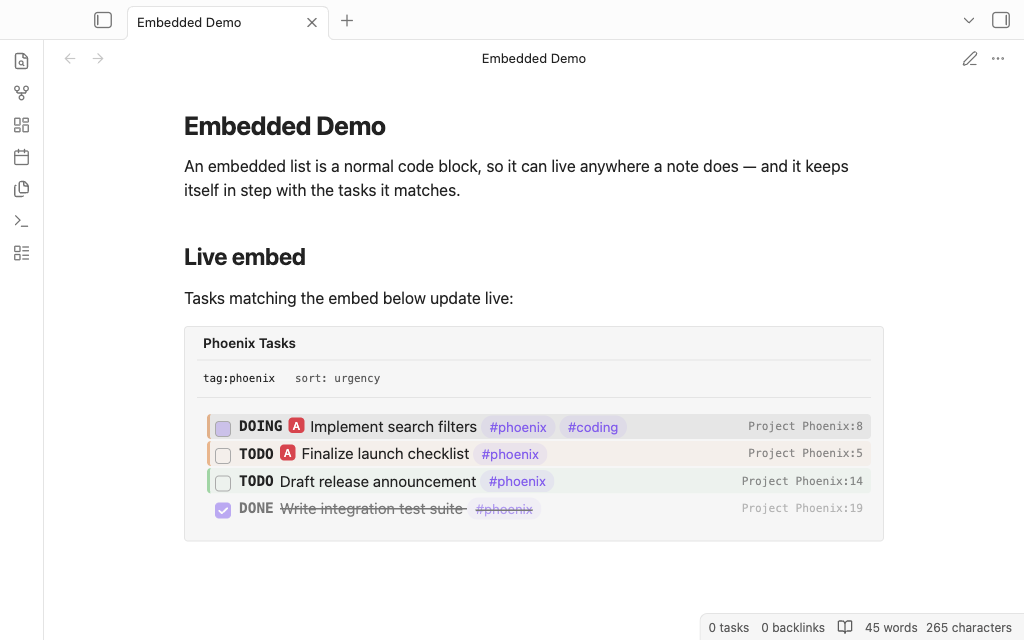
The TODOseq plugin supports rendering filtered task lists directly within your notes using special code blocks. This feature allows you to create dynamic, interactive task lists that are filtered and sorted according to your specifications.
Basic Usage
To create an embedded task list, use a code block with the todoseq language:
```todoseq
search: tag:phoenix
sort: urgency
title: Phoenix Tasks
```
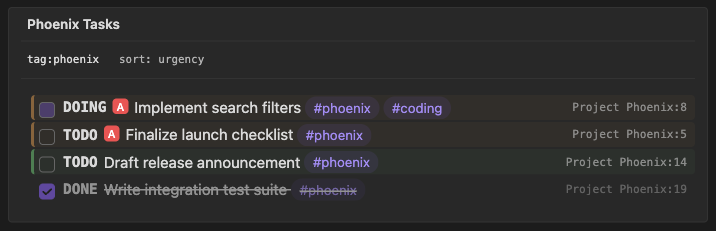
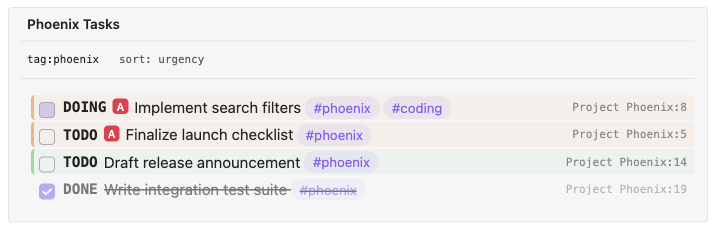
The block above matches every task tagged #phoenix, orders them by urgency, and renders under the heading "Phoenix Tasks". Only search is required — sort and title are optional, and every option is covered below.
Code Block Parameters
Using the following parameters within the todoseq code block you define which tasks are displayed.
| Parameter | Description | Default |
|---|---|---|
search: | Any valid search string (see search) | all tasks |
title: | Adds a custom title displayed above the task list | — |
sort: | One of filepath, scheduled, deadline, closed, priority, urgency, or keyword | filepath |
limit: | Set the display limit to restrict the number of results shown | — |
show-completed: | One of show, hide, or sort-to-end. Controls how completed tasks are displayed (completed: is an alternative alias) | show |
show-file: | show, hide, true, or false. Controls whether to show the source file info column (responsive layout) | show |
show-future: | One of show-all, show-upcoming, hide, or sort-to-end. Controls how future-dated tasks are displayed (future: is an alternative alias) | show-all |
show-query: | show, hide, true, or false. Controls whether to show the search query and filter parameters in the header | show |
wrap-content: | true, false, wrap, truncate, or dynamic. Controls whether task text wraps to multiple lines or truncates with ellipsis. When wrap is enabled, file info moves to a new row with full filename | dynamic (responsive — truncates on wide screens, wraps on mobile) |
show-scheduled-date: | show, hide, true, or false. Controls whether to show inline scheduled date badges on incomplete tasks | hide |
show-deadline-date: | show, hide, true, or false. Controls whether to show inline deadline date badges on incomplete tasks | hide |
collapse: | true or false. When enabled, the task list is collapsible with a chevron toggle. Requires either title: to be set or show-query: true | false |
upcoming-period: | A positive number. Controls how many days ahead tasks are considered "upcoming" when using show-future: show-upcoming | global Upcoming period setting |
scheduled-warning-period: | A non-negative number. Tasks appear this many days after their scheduled date | global Scheduled delay setting |
deadline-warning-period: | A non-negative number. Tasks appear this many days before their deadline | global Deadline advance notice setting |
skip-scheduled-warning-if-deadline: | true or false. Overrides the global Ignore Scheduled Delay When Deadline Is Set setting for this code block | global setting |
skip-deadline-warning-if-scheduled: | true or false. Overrides the global Ignore Deadline Advance Notice When Scheduled Is Set setting for this code block | global setting |
show-description: | show, hide, true, or false. Controls how task descriptions are displayed: show displays the icon and description text, hide displays only the icon (true maps to show, false maps to hide) | hide |
Example:
```todoseq
search: file:Project1 OR tag:project1
sort: filepath
show-completed: hide
show-future: show-upcoming
limit: 5
title: Project Tasks
show-query: show
```
Search Query
The search: parameter accepts any valid TODOseq search query:
```todoseq
search: tag:project1 AND content:"example"
```

```todoseq
search: state:TODO OR state:DOING
```

```todoseq
search: priority:high AND scheduled:due
```
Sort Method
The sort: parameter controls how tasks are ordered. Valid options are:
filepath- Sort by file path (default)scheduled- Sort by scheduled datedeadline- Sort by deadline dateclosed- Sort by closed date (when the task was completed)started- Sort by started date (when work first began)priority- Sort by priority (high → low)urgency- Sort by urgency score (high → low)keyword- Sort by keyword state groups
Example:
```todoseq
search: scheduled:today
sort: priority
```
Another example: completed tasks sorted by their CLOSED date, so the most recently finished tasks come first.
```todoseq
search: state:completed
sort: closed
```
Completed Tasks
The show-completed: parameter controls how completed tasks are displayed. This overrides the global "Completed tasks" setting:
show- Show all completed tasks (default)hide- Hide completed taskssort-to-end- Sort completed tasks to the end of the list
Note:
completed:is an alternative alias forshow-completed:and works the same way.
```todoseq
search: scheduled:due OR deadline:due OR priority:high
show-completed: sort-to-end
```
Future Tasks
The show-future: parameter controls how future-dated tasks are displayed. This overrides the global "Future dated tasks" setting:
show-all- Show all future tasks (default)show-upcoming- Show only upcoming tasks (within 7 days)hide- Hide all future taskssort-to-end- Sort future tasks to the end of the list
Note:
future:is an alternative alias forshow-future:and works the same way.
```todoseq
search: tag:project1
show-future: show-upcoming
```
Limit Results
The limit: parameter limits the number of tasks displayed:
```todoseq
search: file:Project1 OR tag:project1
limit: 10
```
Show File Info
The show-file: parameter controls whether to display the source file information column:
trueorshow- Show file info (default, responsive layout)falseorhide- Always hide file info
```todoseq
search: tag:project1
show-file: false
```
Title
The title: parameter adds a custom title displayed above the task list:
```todoseq
search: tag:urgent
sort: priority
title: Urgent Tasks
```
The title appears at the top of the embedded task list, above the search query and other parameters.
Show Query Header
The show-query: parameter controls whether the search query and filter parameters are displayed in the header:
trueorshow- Show the query header (default)falseorhide- Hide the query header
This is useful when you want a cleaner look, especially when combined with a title:
```todoseq
search: tag:urgent
sort: priority
title: Urgent Tasks
show-query: false
```
When show-query: false is set without a title:, the task list will display without any header at all.
Wrap Content
The wrap-content: parameter controls how task text is displayed when it exceeds the available width:
dynamic- Responsive mode (default): truncates on wide screens, wraps on narrow/mobile screens (≤480px)falseortruncate- Always truncate task text with ellipsistrueorwrap- Always wrap task text to multiple lines
When wrapping is enabled (either always or dynamically on narrow screens), the file information moves to a new row below the task text and displays the full filename without truncation.
```todoseq
search: tag:project1
wrap-content: true
```
The default dynamic mode provides the best experience across devices. To disable this responsive behavior and always truncate:
```todoseq
search: tag:project1
wrap-content: false
```
Show Scheduled Date
The show-scheduled-date: parameter controls whether an inline scheduled date badge is displayed on incomplete tasks:
trueorshow- Show scheduled date badgesfalseorhide- Hide scheduled date badges (default)
```todoseq
search: tag:project1
show-scheduled-date: true
```
When enabled, a calendar icon with the scheduled date appears inline after the task text. In truncated mode, the badge is shown inline; in wrap mode, a "Scheduled: date" row appears below the task text. Both scheduled and deadline can be shown simultaneously — when a task has both dates, only the earliest date badge is shown inline.
If a warning period is active on the scheduled date, a → arrow appears after the date, indicating the task is delayed (appears after the scheduled date).
Show Deadline Date
The show-deadline-date: parameter controls whether an inline deadline date badge is displayed on incomplete tasks:
trueorshow- Show deadline date badgesfalseorhide- Hide deadline date badges (default)
```todoseq
search: priority:high
show-deadline-date: true
```
When enabled, a calendar icon with the deadline date appears inline after the task text. In truncated mode, the badge is shown inline; in wrap mode, a "Deadline: date" row appears below the task text. Both scheduled and deadline can be shown simultaneously — when a task has both dates, only the earliest date badge is shown inline.
If a warning period is active on the deadline date, a <- arrow appears after the date, indicating advance notice (task appears before the deadline).
Show Closed Date
The show-closed-date: parameter controls whether a closed date badge is displayed on completed tasks:
trueorshow- Show closed date badges on completed tasksfalseorhide- Hide closed date badges (default)
```todoseq
search: closed:"last 7 days"
show-closed-date: true
```
When enabled, a check-circle icon with the closed date appears inline after the task text for completed tasks. In truncated mode, the badge is shown inline; in wrap mode, a "Closed: date" row appears below the task text. This option only affects completed tasks — incomplete tasks will not display a closed date badge.
Collapsible Task Lists
The collapse: parameter makes the task list collapsible, allowing you to save space in your notes:
true- Task list starts collapsed with a chevron togglefalse- Task list is always expanded (default)
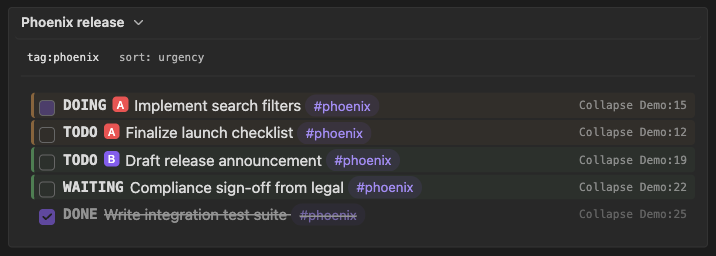
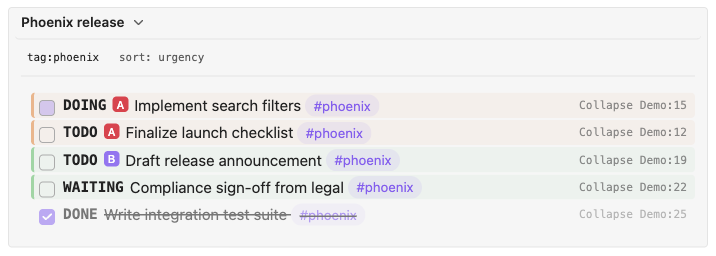
When enabled, the task list initially displays in a collapsed state and a chevron icon (›) indicates the expand/collapse state. Click the header to toggle between expanded and collapsed. When collapsed, a footer shows the count of matching tasks (e.g., "5 matching tasks").
Note: The
collapseoption requires either atitle:to be set ORshow-query: true. This ensures there's a visible header to click for toggling.
```todoseq
title: My Tasks
collapse: true
search: tag:project1
sort: priority
```
Collapsed, the block is just its header and a count of what is hidden:


Clicking the header rotates the chevron and reveals the list:
Warning Period Overrides
The warning period parameters override the global warning period settings for a specific embedded task list. This is useful when different views need different visibility rules.
```todoseq
search: tag:project1
upcoming-period: 14
scheduled-warning-period: 3
deadline-warning-period: 5
```
You can also control the skip behavior per code block:
```todoseq
search: tag:urgent
skip-scheduled-warning-if-deadline: true
skip-deadline-warning-if-scheduled: false
```
Note: When not specified, these parameters fall back to the global settings. See Warning Period Settings for details on how these settings interact.
Combined Parameters
You can combine multiple parameters:
```todoseq
search: (file:Project1 OR tag:project1) AND content:"example"
sort: priority
show-completed: hide
show-future: show-all
show-file: false
show-scheduled-date: true
show-deadline-date: true
limit: 10
```
Visual Date Indicators
The task lists provide subtle visual cues to help you quickly identify task urgency based on scheduled and deadline dates. When a task has either a scheduled or deadline date, you'll see a gentle background color that indicates its time sensitivity without being distracting.
Tasks with dates that have passed appear with a soft red background, making it easy to spot what needs immediate attention. Tasks due today show a warm orange background, helping you focus on today's priorities. For tasks coming up within the next week, you'll see a soft green background that signals they're on your radar. Tasks with dates further out in the future maintain their default appearance, keeping your view clean and uncluttered.
When a task has a warning period set, arrow indicators appear next to the date to provide additional context:
→(right arrow) on scheduled dates — the task appears after the scheduled date (delayed notice)←(left arrow) on deadline dates — the task appears before the deadline (advance notice)
These arrows appear in both inline date badges (truncated/dynamic mode) and date info rows (wrap mode) when show-scheduled-date: or show-deadline-date: is enabled.
Interactive Features
Toggle Task State
Click the checkbox next to a task to toggle its state between TODO and DONE. The task will be updated in the original file, and the embedded list will refresh automatically.
Change Task State
Right-click on the task keyword to select the desired state. The task will be updated in the original file, and the embedded list will refresh automatically.
Task Context Menu
Right-click anywhere on a task row to access additional actions through the context menu. The embedded task list supports the same task context menu actions as the main Task List, including Copy to Today, Move to Today, and Migrate to Today. These options require the Daily Notes core plugin to be enabled, and Migrate to Today additionally requires a migrated state keyword to be configured in settings.
Navigate to Task
Click on the task text to navigate to the task's location in the original file.
Simple click opens the file in the current active page or bringing the existing open page into focus.
Shift-click creates a new split pane and opens the file there. This is perfect for when you want to reference the task while working on something else in your main workspace.
Ctrl/Cmd-click always opens the file in a brand new tab, ensuring you have a fresh workspace for the task without disrupting your current view.
In all cases, TODOseq navigates to the exact line containing the task and focuses the editor for immediate editing.
Error Handling
If no tasks are found or the search query is invalid:
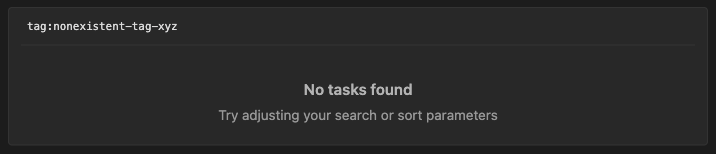
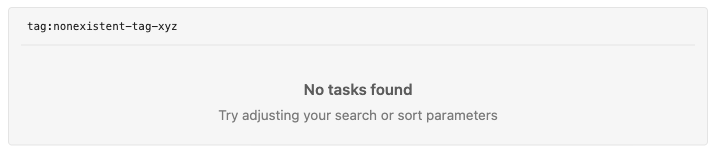
If there's an error with one of the sort or filter options, an error message will be displayed accordingly. The error message indicates what went wrong and suggests how to fix it.


See Also
If you want aggregated counts instead of the tasks themselves — workload by state, priority, tag, or date bucket — see Dashboards, which uses the same search vocabulary with one-click drill-through into the Task List.