Settings
TODOseq provides configuration options to customize the plugin to your workflow. This guide covers all available settings and their impact on functionality.
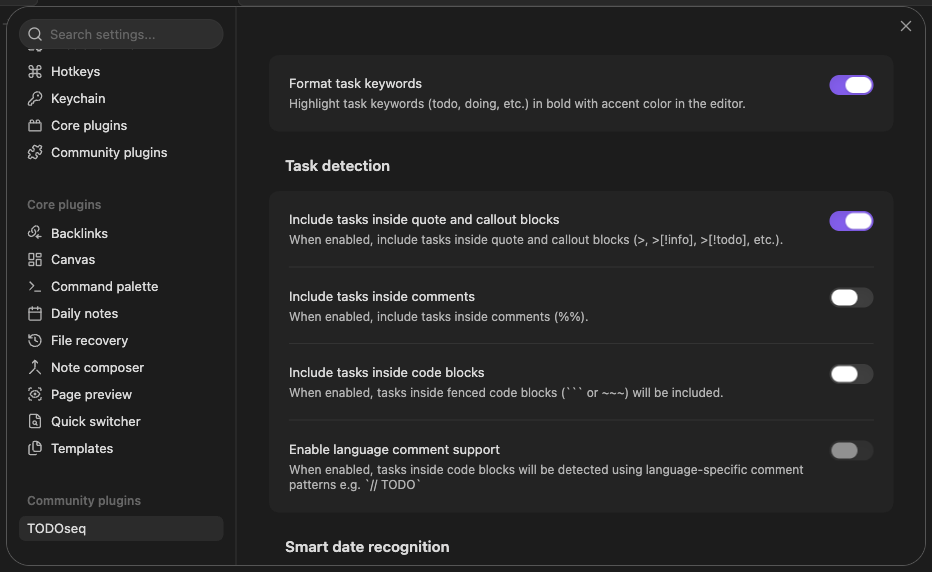
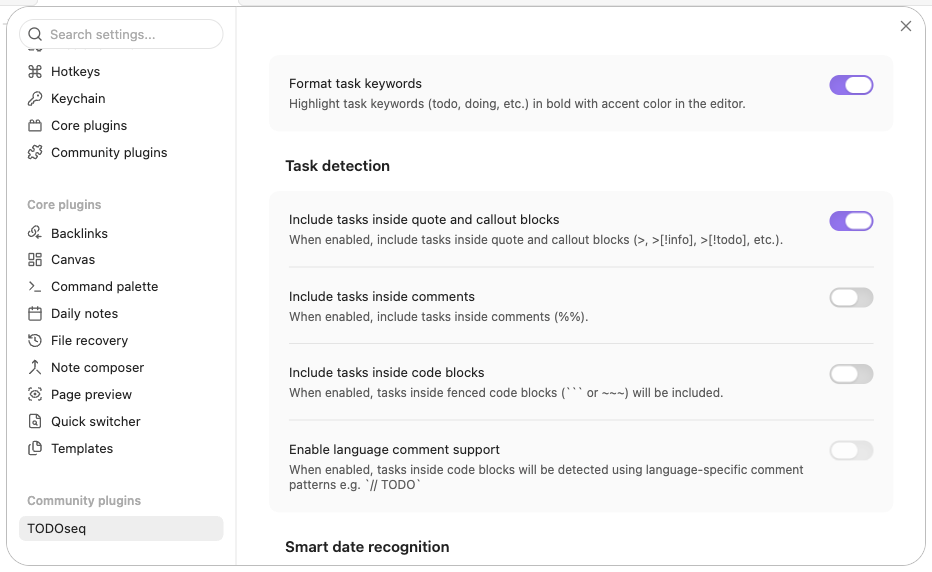
Accessing Settings
Access TODOseq settings through Obsidian's settings interface:
- Open Obsidian Settings
- Navigate to "Community plugins"
- Find "TODOseq" in the list
- Click on "TODOseq" to view and edit settings
General Settings
Editor Integration Settings
Format Task Keywords
Setting: "Format task keywords" toggle (in TODOseq settings)
Description: Enable or disable visual formatting of task keywords in both the editor and reader views.
Default: Enabled
Visual Effects When Enabled:
Task keywords (TODO, DOING, DONE, etc.) appear in bold font. All task states use your Obsidian theme's accent color. See Editor Integration and Reader View documentation for full details.
Task Recognition Settings
Task Keywords
Setting: "Task keywords" section with five keyword groups
Description: Define task state keywords for Active, Inactive, Waiting, Completed, and Archived groups. The group controls styling, sorting, search suggestions, and urgency behavior.
Built-in keywords
TODOseq starts with built-in keywords in each group:
Active Keywords: DOING, NOW, IN-PROGRESS
- Styled with blue/active color
- Highest sort priority for incomplete tasks
- Contribute to urgency score
Inactive Keywords: TODO, LATER
- Styled with default/pending color
- Normal sort priority
Waiting Keywords: WAIT, WAITING
- Styled with yellow/waiting color
- Reduces urgency score
Completed Keywords: DONE, CANCELED, CANCELLED
- Styled with green/complete color
- Lowest sort priority
Archived Keywords: ARCHIVED
- Styled as archived
- Excluded from vault task collection and state search suggestions
Adding custom keywords
The normal workflow is to add your own keywords to the group that matches your process. Custom keywords inherit the behavior of that group. For example, custom active states increase urgency, custom waiting states reduce urgency, and custom completed states are treated as done.
Enter comma-separated, capitalized values in the group field. A small setup might look like this:
Active: STARTED
Inactive: BACKLOG
Waiting: BLOCKED
Completed: FINISHED
Group behavior
You can add custom keywords to any group:
Active Keywords: Tasks currently being worked on
- Highest sort priority among incomplete tasks
- Increases urgency score (same as built-in active keywords)
- Example use cases:
ACTIVE,STARTED,FOCUS
Inactive Keywords: Tasks waiting to be started
- Normal sort priority
- Example use cases:
BACKLOG,PLANNED,QUEUED
Waiting Keywords: Tasks blocked by external dependencies
- Reduces urgency score (same as built-in waiting keywords)
- Example use cases:
BLOCKED,PAUSED,ON-HOLD
Completed Keywords: Tasks that are finished
Lowest sort priority
Example use cases:
FINISHED,RESOLVED
Rules and Behavior
- Styling inheritance: Custom keywords inherit the styling of their group
- Duplicate prevention: The same keyword cannot be added to multiple groups
- State cycling: Custom keywords follow the same state sequences as their group
Advanced: overriding built-in keywords
Advanced users can also override built-in placement and ordering directly in the custom fields.
If you redeclare a built-in keyword in the same group, it is treated as user-defined for ordering in that group. For example:
Active: URGENT, NOWIn this case, NOW stays active but is sorted after URGENT.
If you redeclare a built-in keyword in a different group, the keyword moves to that group and uses the position where you declared it. For example:
Waiting: HOLD, LATERHere, LATER moves from Inactive to Waiting and is sorted after HOLD.
You can remove a built-in keyword from its default group with -KEYWORD syntax:
Inactive: SOMEDAY, -LATERRemoved built-ins are not used for scanning, styling, keyword search suggestions, or state selection menus.
When a keyword changes groups, urgency is recalculated using the new group behavior. For example, moving a keyword from Active to Waiting changes its urgency contribution from active bonus to waiting penalty.
Validation rules for advanced syntax are strict. A keyword cannot be duplicated in one group, cannot appear across multiple groups, and a built-in cannot be both added and removed at the same time. Removal is only valid for built-ins that belong to that specific group. Invalid entries are ignored and shown as errors in settings; valid built-in overrides and removals are shown as warnings so the behavior is explicit.
Migrated State Keyword
Setting: "Migrated state keyword" text field in the Task Keywords section
Description: Define the keyword used to mark tasks that have been migrated to today's daily note via the Migrate to Today action. Leave empty to disable the migrate feature.
Default: disabled
Examples:
ARCHIVED- Marks tasks as archived after migratingMOVED- Indicates the task was moved to another location(migrated)- Non-keyword style markerARCHIVED (migrated)- Combines keyword with additional context
When set, the Migrate to Today option appears in the task context menu and command palette.
Migration from Previous Versions
If you had "Additional task keywords" configured in a previous version, they are automatically migrated to the Inactive Keywords group. You can move them to a different group if needed.
Keyword Sort Ordering
When using the Keyword sort option in the Task List, keywords are sorted by group:
- Active keywords (DOING, NOW, IN-PROGRESS, + custom active)
- Inactive keywords (TODO, LATER, + custom inactive)
- Waiting keywords (WAIT, WAITING, + custom waiting)
- Completed keywords (DONE, CANCELED, CANCELLED, + custom completed)
Within each group, keywords are sorted by effective definition order in settings, including built-in overrides.
Task State Transitions
Setting: "Task state transitions" section with default states and transition declarations
Description: Configure how task states transition when clicked or cycled. This section allows you to define custom state sequences for your workflow.
Default States
Default states are used when no explicit transition is defined for a keyword. Each category has its own default:
Default inactive state: The default state for inactive tasks when no explicit transition is defined
- Default:
TODO - Purpose: Provides a fallback for inactive keywords without explicit transitions
- Validation: If the default state is removed from keywords, it automatically recovers to the built-in default (
TODO)
- Default:
Default active state: The default state for active tasks when no explicit transition is defined
- Default:
DOING - Purpose: Provides a fallback for active keywords without explicit transitions
- Validation: If the default state is removed from keywords, it automatically recovers to the built-in default (
DOING)
- Default:
Default completed state: The default state for completed tasks when no explicit transition is defined
- Default:
DONE - Purpose: Provides a fallback for completed keywords without explicit transitions
- Validation: If the default state is removed from keywords, it automatically recovers to the built-in default (
DONE)
- Default:
Transition Declarations
Transition declarations define how states transition when clicked. Each line represents one or more transitions.
Syntax
The transition syntax supports several patterns:
Simple chain:
STATE -> NEXT_STATE -> NEXT_STATE- Creates a linear sequence of transitions
- Example:
TODO -> DOING -> DONE
Group alternatives:
(STATE1 | STATE2 | STATE3) -> NEXT_STATE- Multiple states share the same next state
- Example:
(WAIT | WAITING) -> IN-PROGRESS
Terminal state:
STATE -> [FINAL_STATE]- Shorthand for declaring a terminal state
- Equivalent to:
STATE -> FINAL_STATE -> FINAL_STATE - Terminal states cannot transition further (clicking has no effect)
- Example:
TODO -> [DONE]
Explicit terminal:
STATE -> FINAL_STATE -> FINAL_STATE- Explicitly declares a terminal state
- Example:
TODO -> DONE -> DONE
Default Configuration
The plugin ships with these default transitions:
TODO -> DOING -> DONE
(WAIT | WAITING) -> IN-PROGRESS
LATER -> NOW -> DONE
Examples
Simple workflow:
TODO -> DOING -> DONEComplex workflow with alternatives:
TODO -> DOING -> DONE
(WAIT | WAITING) -> IN-PROGRESS
LATER -> NOW -> [DONE]
Custom keywords:
BACKLOG -> IN_PROGRESS -> [DONE]
IDEA -> BACKLOG
(REVIEW | TESTING) -> DONE
Validation and Error Handling
The settings include real-time validation:
- Invalid keywords: If a transition includes a keyword that doesn't exist in any keyword group, the line is marked as an error and ignored
- Conflicting declarations: If a state appears in multiple transition declarations, the second declaration is marked as an error and ignored
- Invalid default states: If a default state is removed from keywords, the plugin automatically recovers to the built-in default and displays an info message
Special Cycle Behavior
The Cycle command (vs. click action) has special behavior:
- Completed states → Always transition to
""(blank/clears the state) - Blank state (
"") → Always transition to the default inactive state - Other states → Use the same logic as click action
Behavior with Removed Keywords
If you remove a built-in keyword that appears in your transition declarations:
- The transition line is marked as an error and ignored
- Other valid transitions continue to work
- The state will use its group's default for transitions
This ensures that your workflow remains functional even if you remove keywords, with automatic fallback to defaults.
Terminal States
Terminal states are keywords that transition to themselves. When you click on a terminal state no transition occurs (the state remains unchanged)
Common use cases for terminal states:
- Marking a task as "done" and preventing further changes
- Creating a "final" state that requires manual intervention to change
Include Tasks Inside Code Blocks
Setting: "Include tasks inside code blocks" (toggle)
Description: Enable or disable task detection within fenced code blocks.
Default: Disabled
Impact:
- Enabled: Tasks in code blocks are detected and shown in Task List
- Disabled: Code block tasks are ignored (better performance)
Code Block Examples:
```text
TODO Write unit tests
FIXME Handle edge cases
```
Enable Language Comment Support
Setting: "Enable language comment support" (toggle)
Description: Enable language-aware commented task detection in code block comments.
Requirement: Must have "Include tasks inside code blocks" enabled first
Default: Disabled
Code Block Examples:
```python
# TODO Write unit tests
# FIXME Handle edge cases
```
Supported Languages:
C-style languages: C, C++, C#, Java, JavaScript, TypeScript, Go, Swift, Kotlin, Rust, PowerShell
- Comment syntax:
// TODO taskor/* TODO task */
Scripting languages: Python, Ruby, Shell/Bash, R
- Comment syntax:
# TODO task
Configuration languages: YAML, TOML, INI
- YAML/TOML:
# TODO task - INI:
; TODO task
Other: SQL, Dockerfile
- SQL:
-- TODO task - Dockerfile:
# TODO task
Language Detection:
- Automatic based on code block language identifier
- Falls back to generic comment parsing if language unknown
- Supports 20+ programming languages
Include Tasks Inside Quote and Callout Blocks
Setting: "Include tasks inside quote and callout blocks" (toggle)
Description: Enable or disable task detection in quoted lines and callout blocks.
Default: Enabled
Supported Formats:
> TODO Task in a quote block

> [!info]
> TODO Task in an info callout

> [!todo]-
> - [ ] TODO Checkbox task in collapsible todo block
Use Cases:
- Capture tasks from meeting notes in quotes
- Track action items in callout blocks
- Manage tasks in collapsible sections
Track Closed Date
Setting: "Track closed date" (toggle)
Description: Enable or disable automatic CLOSED date tracking for completed tasks.
Default: Disabled
When Enabled:
- Adds a CLOSED date when tasks are marked as completed
- CLOSED date uses Org-mode syntax with square brackets:
CLOSED: [2025-01-18 Fri 14:30] - Records the date and time when the task was completed
- Removes CLOSED date when completed tasks are reactivated
When Disabled:
- No CLOSED date is added or removed automatically
- Manual CLOSED dates in notes are still recognized and parsed
Track Started Date
Setting: "Track started date" (toggle)
Description: Enable or disable automatic STARTED date tracking for tasks entering an active state.
Default: Disabled
When Enabled:
- Adds a STARTED date when a task first enters an active state (e.g., TODO → DOING)
- STARTED date uses the same square-bracket syntax as CLOSED:
STARTED: [2025-01-18 Fri 09:00] - Records when the task first became active — written once, idempotently
- Does NOT remove the STARTED date when tasks are reactivated (unlike CLOSED); only manual editing removes it
When Disabled:
- No STARTED date is added automatically
- Manual STARTED dates in notes are still recognized and parsed
Smart Date Recognition
Setting: "Smart date recognition" section
Description: Automatically convert natural language date expressions to structured Org-mode dates.
Enable Smart Date Recognition
Setting: "Enable smart date recognition" toggle
Description: Enable or disable automatic conversion of natural language dates.
Default: Disabled
When Enabled:
- Type dates using natural language at the end of task lines
- Automatically converts to structured format when you finish typing
- Supports both one-time and recurring dates
Parse Delay
Setting: "Parse delay (seconds)" slider (0.5-5.0)
Description: Wait time after typing before converting dates to prevent false positives.
Default: 1.5 seconds
How It Works:
- Conversion happens after you stop typing for the specified delay
- Prevents false positives while you're still composing the task line
- Shorter delay = faster conversion, but more risk of unwanted conversions
- Longer delay = slower conversion, but more accurate detection
Remove Date Keywords
Setting: "Remove date keywords" toggle
Description: Remove natural language text after conversion to structured dates.
Default: Enabled
When Enabled:
- Input:
TODO Call John tomorrow - Output:
TODO Call John+SCHEDULED: <date>
When Disabled:
- Input:
TODO Call John tomorrow - Output:
TODO Call John tomorrow+SCHEDULED: <date>
Include Tasks Inside Comment Blocks
Setting: "Include tasks inside comments" (toggle)
Description: Enable or disable task detection inside multiline comment blocks.
Default: Disabled
Task List Search and Filter Settings
Completed Tasks
Setting: "Completed tasks" dropdown
Description: Controls how completed tasks are displayed in the Task List view.
Options:
- Show all tasks: Display all tasks regardless of completion status
- Sort completed to end: Show completed tasks at the end of the list
- Hide completed: Only show incomplete tasks
Default: Show all tasks
Future Dated Tasks
Setting: "Future dated tasks" dropdown
Description: Controls how tasks with future scheduled or deadline dates are displayed in the Task List view.
Options:
- Show all: Display all tasks normally (default behavior)
- Sort to end: Show future tasks at the end of the list, after current tasks
- Show upcoming: Only show future tasks that are within the upcoming period (configurable, default: 7 days)
- Hide future: Hide all future tasks completely
Default: Show all
Task Descriptions
Setting: "Task descriptions" dropdown
Description: Controls how task descriptions (DESCRIPTION: lines) are displayed in the Task List view only. Editor, reader view, and embedded task lists always display DESCRIPTION: lines with styling regardless of this setting.
Options:
- Show Show the icon and description text as styled text below each task
- Hide: Show only the icon with description text in a tooltip on hover
Default: Show
Upcoming Period
Setting: "Upcoming period (days)" numeric input
Description: Sets how many days ahead tasks are considered "upcoming" when using the Show upcoming option.
Default: 7
Warning Period Settings
Deadline Advance Notice
Setting: "Deadline advance notice (days)" numeric input
Description: Tasks appear this many days before their deadline. Set to 0 to disable.
Default: 0 (disabled)
Example: Setting to 5 means a task with DEADLINE: <2026-06-20> appears in the task list from June 15.
Scheduled Delay
Setting: "Scheduled delay (days)" numeric input
Description: Tasks appear this many days after their scheduled date. Set to 0 to disable.
Default: 0 (no delay)
Example: Setting to 3 means a task with SCHEDULED: <2026-06-10> doesn't appear until June 13.
Ignore Scheduled Delay When Deadline Is Set
Setting: Toggle
Description: If a task has both a scheduled date and a deadline, the scheduled delay is ignored and only the deadline advance notice applies.
Default: Disabled (both warning periods apply; earliest effective date wins — matches Org Mode default)
Ignore Deadline Advance Notice When Scheduled Is Set
Setting: Toggle
Description: If a task has both a scheduled date and a deadline, the deadline advance notice is ignored and only the scheduled delay applies.
Default: Disabled (both warning periods apply; earliest effective date wins — matches Org Mode default)
Setting Permutations
When a task has both a SCHEDULED date and a DEADLINE date, both warning periods may apply. These two settings control which one takes precedence:
| Ignore Scheduled Delay When Deadline Is Set | Ignore Deadline Advance When Scheduled Is Set | Behavior |
|---|---|---|
| Disabled (default) | Disabled (default) | Both apply. The earlier effective visibility date wins. (Org Mode default) |
| Enabled | Disabled | Deadline advance notice wins. Scheduled delay is ignored. |
| Disabled | Enabled | Scheduled delay wins. Deadline advance notice is ignored. |
| Enabled | Enabled | Both are ignored. Task uses raw scheduled and deadline dates with no warning period adjustment. |
Example with SCHEDULED: <June 10 -3d> and DEADLINE: <June 20 -5d>:
| Settings | Scheduled effective | Deadline effective | Effective visibility date | Explanation |
|---|---|---|---|---|
| Default (skip neither) | June 13 (10+3) | June 15 (20−5) | June 13 | Earlier of the two wins |
| Skip scheduled instead | June 10 (delay ignored) | June 15 (20−5) | June 10 | Scheduled uses raw date |
| Skip deadline instead | June 13 (10+3) | June 20 (warning ignored) | June 13 | Deadline uses raw date |
| Skip both | June 10 (raw) | June 20 (raw) | June 10 | Both use raw dates |
Week Starts On
Setting: "Week starts on" (dropdown)
Description: Choose which day the week starts on for date filtering.
Options:
- Monday: Week starts on Monday (default, ISO standard)
- Sunday: Week starts on Sunday
Impact:
- Affects date-based filtering expressions:
this weeknext week
- Does not affect absolute date ranges
- Does not change how dates are displayed
Example Differences:
With Monday start:
- Week 1: Mon Jan 1 - Sun Jan 7
- "this week" on Jan 3 includes Jan 1-7
With Sunday start:
- Week 1: Sun Dec 31 - Sat Jan 6
- "this week" on Jan 3 includes Dec 31 - Jan 6
Default Sort Method
Setting: "Default sort method" (dropdown)
Description: Choose the default sort method for the task list view.
Options:
- Default (file path): Sort by file path and line number
- Scheduled date: Sort by scheduled date
- Deadline date: Sort by deadline date
- Priority: Sort by priority (high → low)
- Urgency: Sort by urgency score (high → low)
Default: Default (file path)
Auto-Archive Settings
Auto-Archive rewrites completed keywords (e.g. DONE) to archived keywords (e.g. ARCHIVED) once a task's CLOSED date is at least the threshold days old. The task stays in your note with its history intact — it just stops appearing in the Task List. You can always run archiving manually from a preview dialog; automatic runs are opt-in. You will find these settings in the "Auto-archive completed tasks" group. See Auto-Archive for the full walkthrough.
Enable automatic archiving
Setting: "Enable automatic archiving" (toggle)
Description: Enable or disable automatic archive runs after vault scans.
Default: Disabled
When Enabled:
- Runs after every full vault scan, including the scan at startup
- Uses the days threshold only — the "Closed before" date criterion is available for manual runs only
- Shows a notice with an Undo button when tasks are archived; stays silent when nothing matches
When Disabled:
- Nothing is archived automatically
- Manual runs via "Preview and archive…" are still available
Archive threshold (days)
Setting: "Archive threshold (days)" numeric input (1–3650)
Description: Tasks closed at least this many days ago match. Drives automatic runs and the dialog default.
Default: 90
Example: A threshold of 90 means a task closed on 2026-01-01 starts matching on 2026-04-01.
State mappings
Setting: One mapping row per completed keyword (<KEYWORD> →), each with a toggle and a target dropdown
Description: Choose which completed states are archived and which archived keyword they become. The toggle controls whether the row participates in archive runs; the dropdown selects the target archived keyword from your keyword configuration.
Rules:
- The first enabled mapping wins when several rows map the same source keyword
- Rows update live when your task or archived keywords change
- A mapping with an invalid target is flagged and is unusable at run time until fixed
Example:
DONE → ARCHIVED        (enabled)
CANCELED → ARCHIVED    (disabled)
Preview and archive
Setting: "Preview and archive…" button
Description: Opens the archive dialog, where you choose a criterion, adjust the state mappings, review the matching tasks, and confirm. Nothing is written until you apply. Manual runs do not require "Enable automatic archiving". Tasks without a CLOSED date are never archived. See Auto-Archive.
Safety rails
- Undo the most recent run with the "Undo last archive run" command (available until Obsidian restarts)
- Every task is re-checked against the file immediately before writing; lines that changed are skipped, not overwritten
- Archived states are terminal — archived tasks are never archived again
Other Settings
Excluded Files
TODOseq respects Obsidian's built-in file exclusion system ("Files & links" → "Excluded files"). Files and paths matching your exclusion patterns will not be scanned for tasks.
Obsidian does not notify plugins when the "Excluded files" setting has been modified. To update the task list you can use the "Rescan Vault" action from the command palette.
Hotkeys
The Toggle task state command palette action is bound to Ctrl+Enter by default.
Use the Obsidian Hotkeys setting to add or remove hotkeys for command palette actions. Available editor-specific commands include:
- Toggle task state
- Cycle task state
- Open context menu
- Open scheduled date picker
- Open deadline date picker
- Add scheduled date
- Add deadline date
- Set priority high/medium/low
- Copy/move/migrate task to today
All editor commands only appear in the command palette when your cursor is on a valid task line.
Experimental Features
The experimental features section contains settings for features that are still in development or testing. These features may not be fully functional and could change or be removed in future versions.
Detect Tasks in Org Mode Files
Setting: "Detect tasks in org mode files" (toggle)
Description: Enable parsing of tasks from Org-mode files (.org extension).
Default: Disabled
When Enabled:
.orgfiles are scanned for tasks using Org-mode headline syntax- Tasks appear in the Task List alongside Markdown tasks
- Supports Org-mode priorities, scheduled dates, and deadline dates
Limitations:
- Editor styling and decorations are not supported for Org-mode files
- Tasks are detected during vault scanning only
See Experimental Features for detailed documentation on Org-mode support.
Scan Code Files for Comments
Setting: "Scan code files for comments" (toggle)
Description: Enable detection of tasks from comments in programming language files.
Default: Disabled
When Enabled:
- Code files (
.js,.ts,.py,.rb,.java,.rs,.go,.c,.cpp,.cs,.swift,.kt,.sh,.yaml,.yml,.toml,.sql,.ini,.r,.dockerfile,.ps1) are scanned for task keywords in comments - Tasks appear in the Task List alongside Markdown tasks
- Single-line comments (
//,#,--): and multi-line comments (/* */,''' ''') are recognized - Keywords inside string literals are skipped to reduce false positives
Limitations:
- No dates or priorities: Code comments typically don't have scheduled/deadline dates or priority markers
- No subtask tracking: Code comments don't support subtask counting
See Experimental Features for detailed documentation on code file scanning.