Reader View
TODOseq brings the same interactive task experience from the editor into Obsidian's Reader view (also called Reading mode or Preview mode). When you're reading your notes rather than editing them, your tasks remain fully functional—you can click keywords to change states, use context menus, and see the same visual styling that helps you quickly identify task status.
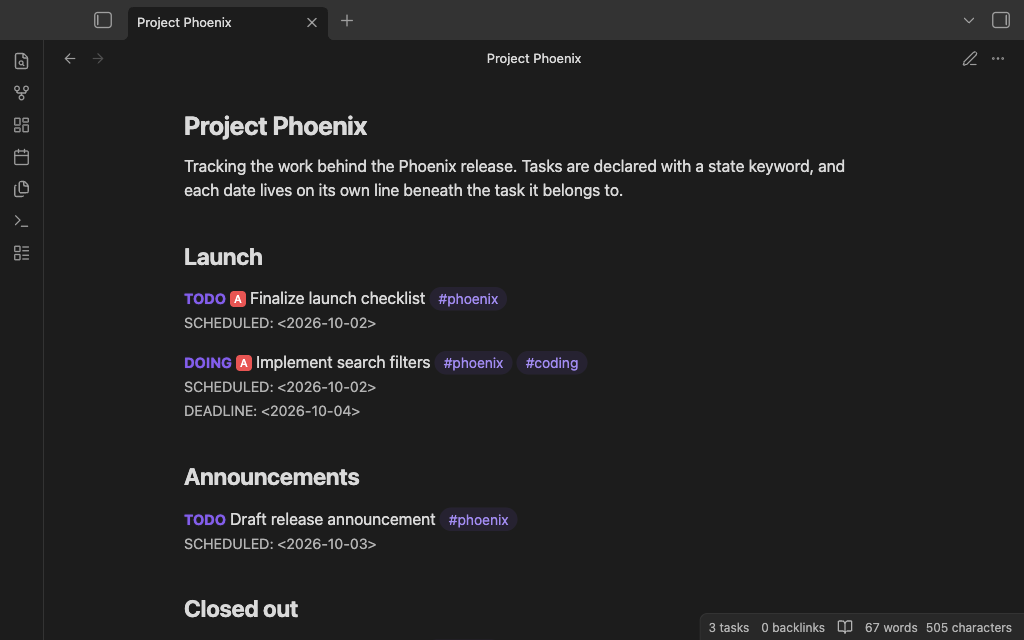
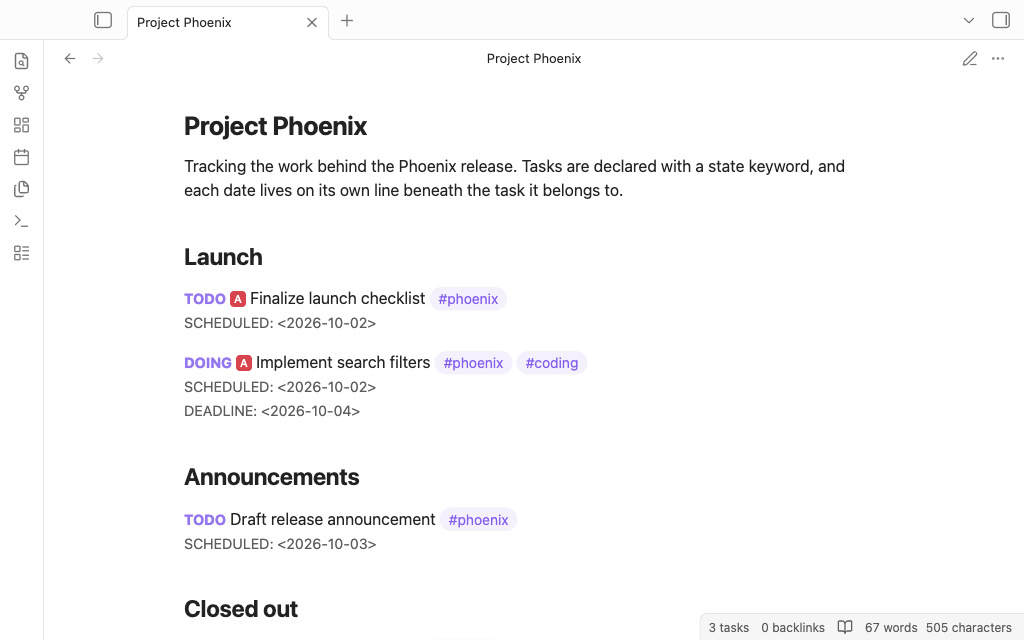
What You Get in Reader View
When the "Format task keywords" setting is enabled, TODOseq transforms how tasks appear in Reader view. Task keywords like TODO, DOING, and DONE receive distinctive styling with bold formatting and your theme's accent color. Completed tasks display with a line-through effect, making it immediately obvious which items are finished. SCHEDULED, DEADLINE, CLOSED, and STARTED lines also receive special formatting to stand out from regular text.
Tasks declared in headings are also fully supported in Reader view, with keywords styled to match the heading size.
Interacting with Tasks
In the Reader view you can update the tasks state without switching back to edit mode.
Click to Cycle States
Single-click any task keyword to cycle through its state sequence. Click TODO and it becomes DOING. Click again and it becomes DONE. The cycle continues, letting you progress tasks through their natural workflow with a simple click.
Right-Click for Direct State Selection
Jump to a specific state without cycling through intermediate ones. Right-click any task keyword to open a context menu showing all available next states. Select the desired state directly from the menu.
Checkbox Tasks
When tasks include checkboxes, clicking the checkbox toggles between checked and unchecked states. The task keyword automatically synchronizes with the checkbox—checking a box marks the task as DONE, unchecking returns it to TODO.
Code Blocks in Reader View
TODOseq intentionally does not apply task styling to code blocks in Reader view. Code blocks maintain their original formatting without keyword highlighting or interactive elements. This preserves the readability of your code examples and prevents task keywords in code from being mistaken for actual tasks.
Note that code block styling only applies in the editor when the relevant setting is enabled. In Reader view, code blocks always appear as plain code.