Editor Integration
TODOseq seamlessly integrates with Obsidian's Markdown editor, providing visual feedback and interactive controls for managing your tasks directly within your notes. This guide explains how tasks are displayed and how you can interact with them in the editor.
For information about task display and interaction in Reader view (Reading/Preview mode), see the Reader View documentation.
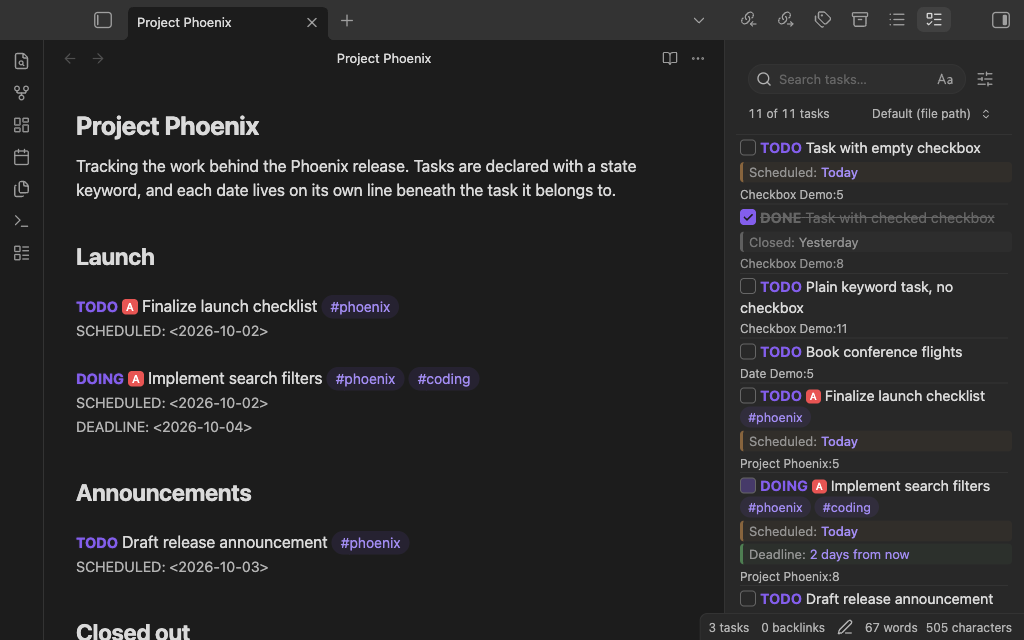
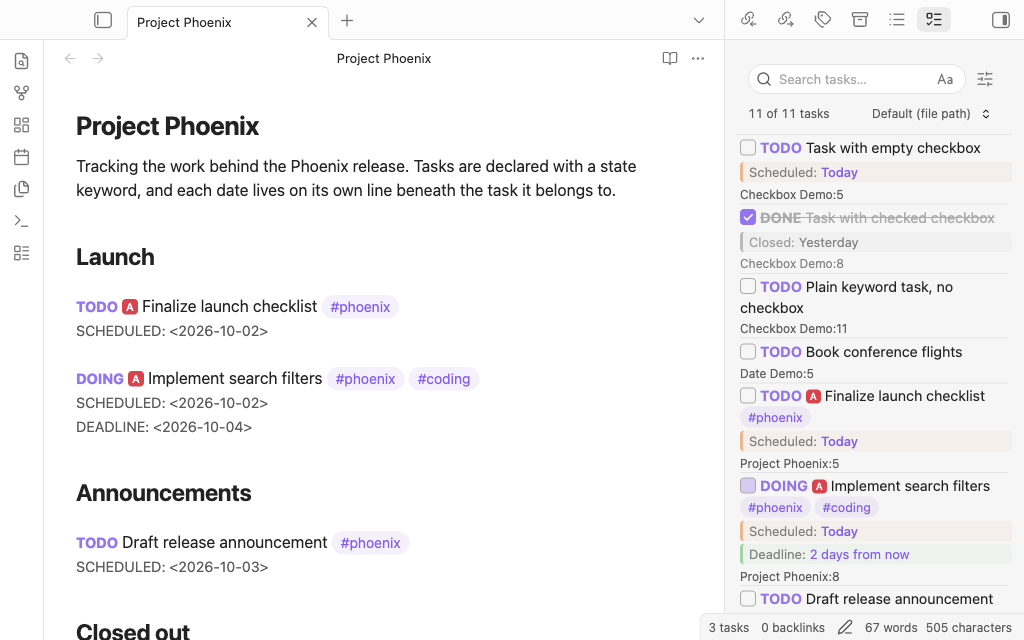
Task Display in the Editor
When you create tasks using TODOseq's keyword-based format, they appear in your Markdown editor with special styling that helps you quickly identify and manage them.
Visual Task Representation
As you type or when you open a note containing tasks, TODOseq automatically applies visual styling to make tasks stand out:
TODO [#A] Write documentation for new feature
DOING [#B] Implement authentication system
DONE [#C] Fix critical bug in payment processing
What you see in the editor:
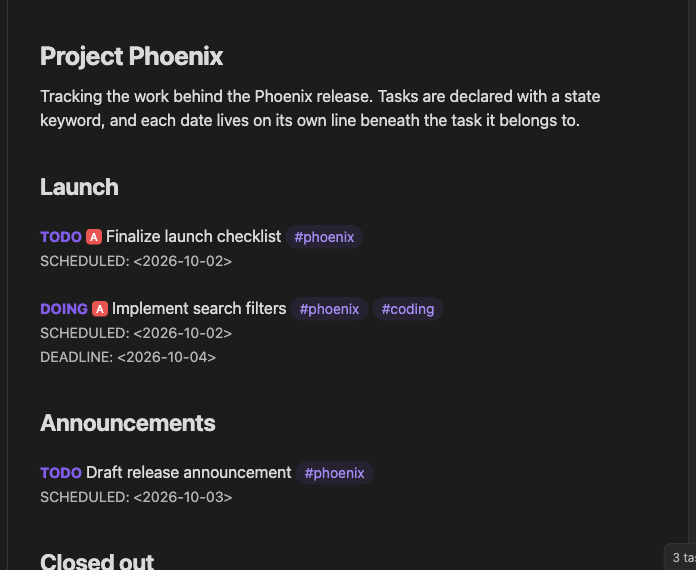
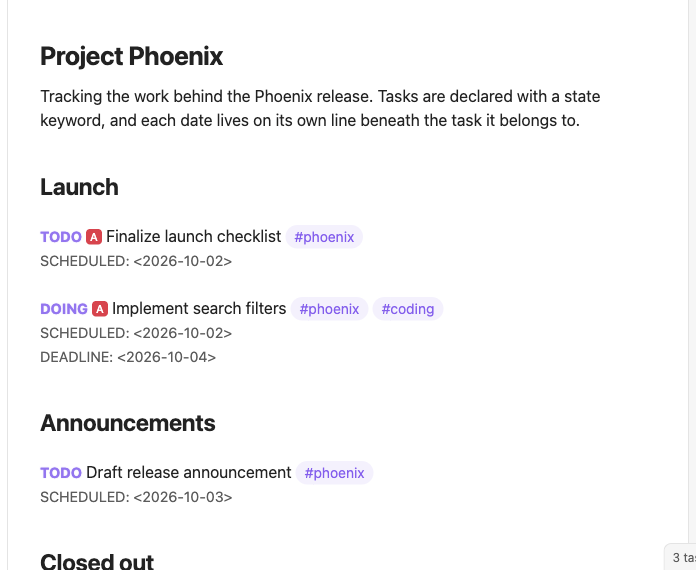
- State keywords (TODO, DOING, DONE, etc.) are highlighted with bold font and your theme's accent color
- Completed tasks (DONE, CANCELED, CANCELLED) display with a line-through decoration
- Checkboxes (when used) are synchronized with the task state
- SCHEDULED and DEADLINE date lines are formatted with special styling (CLOSED and STARTED date lines too)
- The styling is applied in real-time as you type
Interactive Task Management
TODOseq provides several ways to interact with tasks directly in the editor:
Clicking Task Keywords
The most intuitive way to update task states is by clicking on the state keyword. Click on any state keyword (e.g., TODO) to cycle through the task states.
Tasks follow logical state sequences:
TODO→DOING→DONE→TODOLATER→NOW→DONEWAIT→IN-PROGRESS→DONE
Right-Click Context Menu
For more control over task state transitions, right-click on any task keyword to see all available next states. A context menu appears showing all possible next states. Select the desired state from the menu.
This is particularly useful when you want to jump to a specific state without cycling through all intermediate states.
Keyboard Shortcut
For power users who prefer keyboard navigation:
- Place your cursor on any line containing a valid task
- Press Ctrl+Enter (default shortcut) to toggle the task state
- The task cycles through its state sequence
Customizing the shortcut:
You can change this keyboard shortcut in Obsidian's settings:
- Go to Settings → Hotkeys
- Find "TODOseq: Toggle task state"
- Assign your preferred key combination
For more details on editor integration settings, see the Settings documentation.
Checkbox Interaction
When tasks use the checkbox format, you have additional interaction options:
- [ ] TODO Task with empty checkbox
- [x] DONE Task with checked checkbox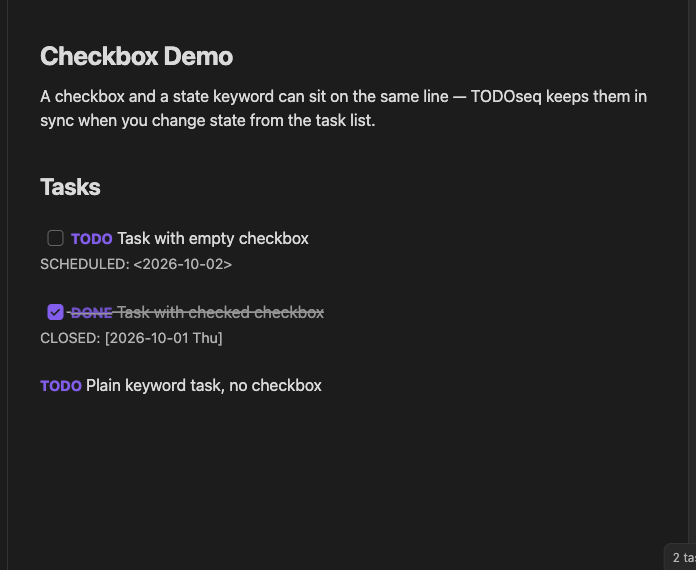
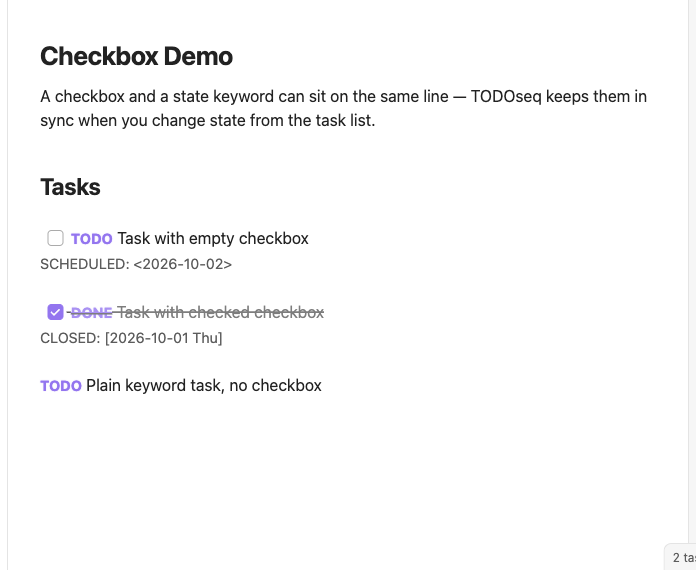
Clicking the checkbox toggles between empty [ ] and checked [x] states. The task keyword is automatically synchronized with the checkbox state.
Entering Scheduled and Deadline Dates
TODOseq provides multiple ways to add scheduled and deadline dates to your tasks:
Manual Date Entry
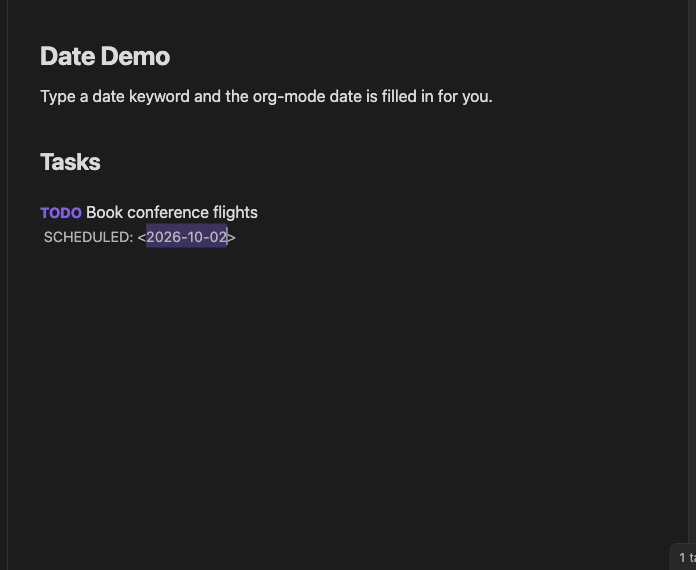
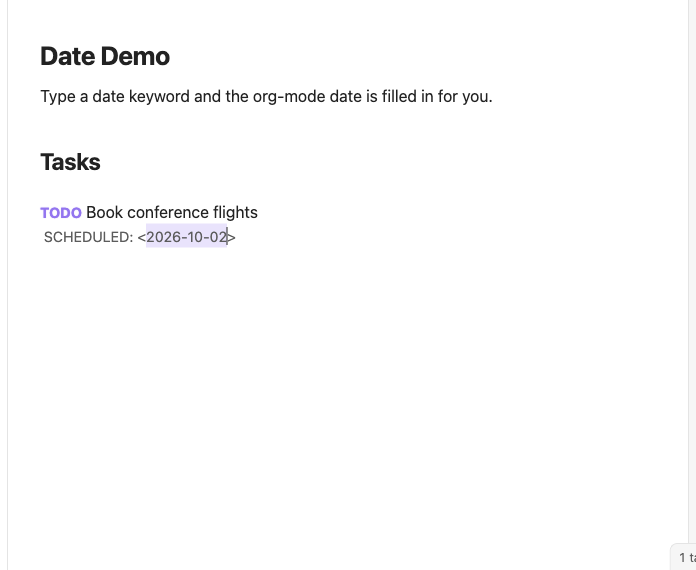
When adding a SCHEDULED: or DEADLINE: date after a task, the editor will autocomplete after the keyword with the required date format, e.g. <2026-01-01>, with the date auto-filled to the current date and selected for easy replacement or editing.
Smart Date Recognition
When smart date recognition is enabled in settings, you can type natural language dates directly on your task lines. TODOseq automatically converts them to structured Org-mode dates when you finish typing. The supported date patterns are listed below.
One-time Dates:
TODO Call John today
DOING Review PR tomorrow
LATER Submit report on Friday
LATER Meeting next week
Recurring Dates:
TODO Daily standup daily
TODO Team meeting every Friday
TODO Monthly review monthly
With Time:
TODO Conference call tomorrow at 16:00
TODO Evening review 9pm
TODO Daily meeting daily 20:00
TODO Standup at 8:00am
TODO Call on Friday at 15:30
DEADLINE Detection:
The system automatically detects whether dates should be SCHEDULED or DEADLINE based on context:
TODO Project due tomorrow → DEADLINE
TODO Submit by deadline Friday → DEADLINE
TODO Call John tomorrow → SCHEDULED
TODO Meeting on Monday → SCHEDULED
Supported Date Expressions:
- Simple: today, tomorrow, yesterday
- Relative: in 5 days, in 2 weeks, in 3 months, in 2 hours, day before yesterday
- Next / last / this: next week, last week, next month, last month, next year, last year
- Weekdays: Monday, Tuesday, Friday, next Friday, last Monday, this Friday, on Monday, on Friday
- With time: 6pm, 9am, at 8:00am, at 16:00, at 5:30pm, tomorrow at 14:00
- With day and time: on Friday at 2pm, on Thursday at 8:30am
- Time-of-day: morning (→ 08:00), afternoon (→ 14:00), evening (→ 19:00), noon (→ 12:00), midnight (→ 00:00)
- Recurring: daily, every day, weekly, every week, monthly, every month, every Friday
- Specific dates: January 27, 27 January, 2026-08-11, 8/11/2026, 27th
Visual highlight: When the cursor is on a task line, TODOseq highlights the detected date expression with a subtle outline so you can see exactly what will be converted.
Re-typing a date or moving the cursor away triggers the conversion.
Input:
TODO Call John tomorrowOutput:
TODO Call John
SCHEDULED: <2026-05-19 Mon>
Configuration:
See Settings → Smart Date Recognition for:
- Enable/disable the feature
- Adjust parse delay to prevent false positives
- Choose whether to remove the natural language text after conversion
This feature helps you capture tasks quickly without breaking your writing flow, while ensuring dates are stored in a consistent, structured format that works across all TODOseq features.
Task State Synchronization
TODOseq ensures that the task state and checkbox are always in sync:
- Changing the task keyword updates the checkbox
- Checking/unchecking the checkbox updates the task keyword
- Both methods update the task's completion date if applicable
This synchronization happens automatically as you interact with tasks in the editor or the Task List.
Editor-Specific Features
While many task interactions work similarly in both Edit mode and Reader view, the editor offers some unique capabilities:
Real-time Styling
Task formatting appears as you type in Edit mode. As soon as you type a valid task keyword, it receives styling immediately. This instant feedback helps you confirm that TODOseq recognizes your task syntax.
Code Block Styling
When "Include tasks inside code blocks" is enabled, TODOseq can apply styling to task keywords within code blocks in the editor. This makes tasks in code examples visually distinct. Note that code block styling is only applied in Edit mode; Reader view always displays code blocks without task formatting to preserve code readability.
Tasks in Tables
TODOseq can detect and manage tasks defined within Markdown table cells. This allows you to track tasks in a structured tabular format.
How It Works
When you define tasks inside table cells using standard TODOseq syntax, the following behavior applies:
| Task             | Notes | Comments |
| ---------------- | ----- | -------- |
| TODO write docs  |       |          |
| DOING review PRs |       |          |
| DONE deploy      |       |          |
Supported Syntax
Table cell tasks support the same keyword syntax as regular tasks:
Basic tasks:
| TODO fix the bug | DOING review code | DONE deploy |With priorities:
| TODO [#A] critical fix | DOING [#B] refactor | TODO [#C] cleanup |With dates (inline):
Dates are stored inside the cell using <br> separators:
| TODO write docs<br>SCHEDULED: <2026-03-01> | DOING review PRs<br>DEADLINE: <2026-02-28> |Combined:
| TODO [#A] ship feature<br>SCHEDULED: <2026-03-01><br>DEADLINE: <2026-03-15> |Date Handling in Tables
Unlike regular tasks where dates appear on separate lines below the task, table task dates are stored inline within the cell, separated by <br> tags. This is a limitation of the table format — there are no separate lines available for date entries.
When you add a scheduled or deadline date via the context menu or date picker, the date is appended to the cell content.
Interacting with Table Tasks
- Toggle state: Click the checkbox in the Task List to cycle through states
- Set dates: Right-click a table task in the Task List to access the date picker
- Change priority: Right-click to access priority options
- Open source: Click the task location link to jump to the table in the editor
Limitations
The following limitations apply to Markdown table tasks:
- Inline dates only: Dates are stored within the cell using
<br>separators, not on separate lines - Single-line cells: Each cell is treated as a single task; multi-line content within a cell is not fully supported
- No subtask support: Subtask counting does not apply to table tasks
- Limited navigation: The goto task action locates the source table, but not the specific task cell
Example
| COL1            | COL2             | COL3                   |
| --------------- | ---------------- | ---------------------- |
| TODO write docs | DOING review PRs | TODO [#A] ship feature |
| DONE deploy     | CANCELED revert  | WAIT [#B] approval     |
Cursor Position Awareness
Editor interactions respect your cursor position. The Ctrl+Enter keyboard shortcut works based on where your cursor is placed, allowing you to toggle task states without precisely clicking on keywords.
Command Palette Commands
TODOseq provides several editor-specific commands to modify task that can be accessed through Obsidian's Command Palette (Ctrl/Cmd+P) and keyboard shortcuts. Task specific commands only appear when your cursor is on a valid task line
See Command Palette for more details.