Auto-Archive
Auto-Archive rewrites completed task keywords (e.g. DONE) to an archived keyword (e.g. ARCHIVED) once a task's CLOSED date is at least the threshold days old. The tasks stay in your notes with their history intact — they just stop appearing in the Task List. You can run it manually from a preview dialog, or opt in to automatic runs after vault scans.
Why Archive?
Completed tasks accumulate forever. DONE lines are useful history, but after a while they bury the work that still matters. Archiving keeps the record in the note — the line and its CLOSED date are unchanged apart from the keyword — while removing the task from the Task List, because archived tasks are not collected during vault scans (see Task Entry).
How It Works
A task is a candidate when all of these hold:
- Its state has an enabled mapping to an archived keyword (configured in Settings)
- It has a CLOSED date — tasks without one are never archived
- The CLOSED date is at least the threshold days ago (days mode), or before the criterion date (date mode, manual runs only)
When a task matches, its state keyword is rewritten:
- DONE Write quarterly report
  CLOSED: [2026-01-05 Mon 10:12]
becomes:
- ARCHIVED Write quarterly report
  CLOSED: [2026-01-05 Mon 10:12]
Everything else on the line — text, priority, dates, indentation, table-cell position — is preserved. Archived states are terminal: an archived task is never re-archived, and archiving never touches tasks in states you have not mapped.
Manual Run (Preview and Archive)
Open the dialog with TODOseq: Archive completed tasks in the Command Palette, or the Preview and archive… button in settings. Nothing is written until you confirm.
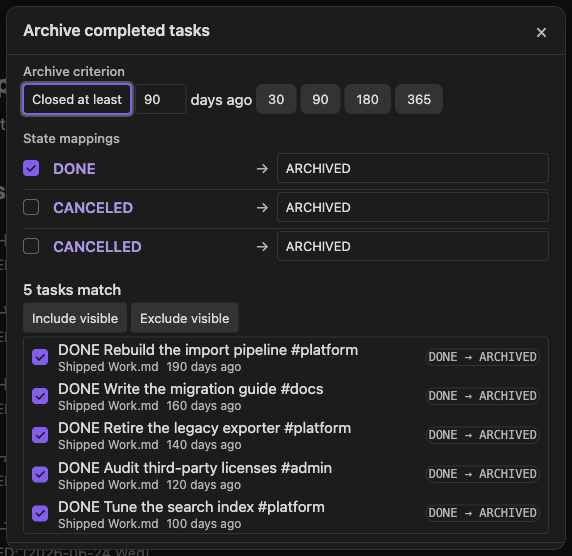
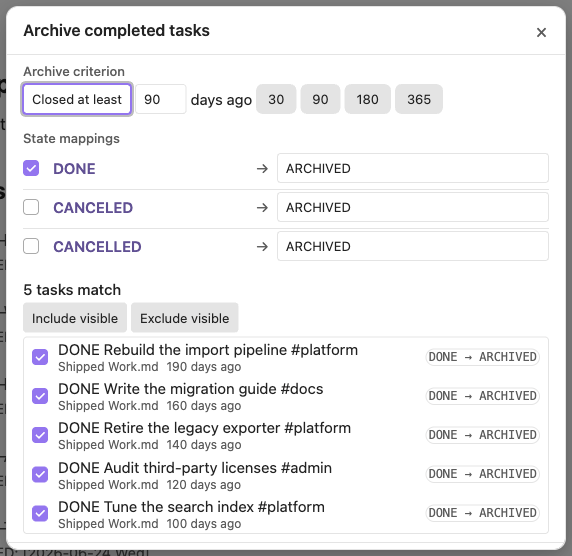
Criterion — choose Closed at least N days ago (with 30/90/180/365 presets) or Closed before a specific date. Date mode is available for manual runs only; automatic runs always use the days threshold.
State mappings — the same rows as the settings section, editable here. Changes apply immediately and persist.
Preview list — every matching task with its text, file path, CLOSED date, and the rewrite that will happen (DONE → ARCHIVED). Each row has a checkbox:
- Uncheck rows you want to leave alone
- Tasks in table cells are previewed per cell, so two tasks sharing one table row are archived (or skipped) independently
- Include visible / Exclude visible bulk-toggle the rows in the list
- The list shows up to 200 rows ("+N more not shown"); bulk buttons apply to the visible rows only, so they never silently touch tasks you cannot see
Apply — the button states the exact scope: Archive 30 tasks (everything matches), Archive 12 of 30 tasks (you excluded some), or Nothing to archive (no matches). Each task is re-checked against the current file content right before writing; lines that changed since the preview are skipped and reported.
Automatic Runs
Enable Enable automatic archiving in settings to run after every full vault scan — at startup and on manual rescans. Ordinary note edits do not trigger it.
Automatic runs always use the days threshold (never date mode), respect the same mappings and safety rails as manual runs, and stay silent when nothing matches. When tasks are archived, a notice shows what happened with an Undo button.
Undo
- Click Undo in the completion notice, or run TODOseq: Undo last archive run from the Command Palette
- The most recent run is reverted; each line is verified before restoring, and lines that changed since the run are skipped and reported
- A run that is interrupted partway is still undoable — Undo restores exactly the tasks that were archived
- Undo is session-scoped — it stays available until Obsidian restarts
Safety Rails
- Tasks without a CLOSED date are never archived
- Only states you explicitly map participate
- Archived tasks are never re-archived
- Every line is re-verified immediately before writing; stale lines are skipped, not overwritten
- Settings and dialog edits cannot overwrite each other — both surfaces write safely to the same mappings
Setting It Up
- Decide the archived keyword(s) —
ARCHIVEDis built in; add your own under Archived keywords in Settings - Set the Archive threshold (days) (default 90)
- Enable the mapping rows for the completed states you want archived
- Try it with Preview and archive… first; turn on Enable automatic archiving when you trust the result
Settings Reference
See Settings for every option: Auto-Archive Settings.