Warning Periods
Warning periods control when a task becomes visible in the task list relative to its SCHEDULED or DEADLINE date. Instead of appearing exactly on the scheduled date or the deadline, a warning period shifts the task's visibility forward or backward in time — giving you advance notice for deadlines or delaying the appearance of scheduled tasks.
This feature is inspired by Org Mode's warning period mechanism for DEADLINE and SCHEDULED timestamps. In Org Mode, a deadline with -5d triggers agenda warnings starting 5 days before the due date, and a scheduled item with -2d delays its display by 2 days. TODOseq implements the same syntax and semantics, with extensions for per-task overrides and first-only warning periods.
Why Use Warning Periods?
Without warning periods, a task with DEADLINE: <2026-06-20> only appears on June 20. With a 5-day advance notice, the task appears from June 15 — giving you a window to prepare.
Common use cases:
- Deadline advance notice: A report due Friday should start appearing on Monday so you have time to work on it
- Scheduled delay: A follow-up task scheduled for next week shouldn't clutter today's list — delay its appearance until closer to the date
- Recurring tasks with initial grace period: A weekly review task should give you 2 extra days for the first occurrence, but not for subsequent weeks
Syntax
Warning periods use the -Nunit syntax appended after the date (and after a repeater if present). The unit character determines the time scale:
| Unit | Meaning | Example | Equivalent days |
|---|---|---|---|
d | Days | -5d | 5 days |
w | Weeks | -1w | 7 days |
m | Months | -1m | ~30 days |
y | Years | -1y | ~365 days |
The unit character is case-insensitive — d, D, w, W, m, M, y, and Y all work.
DEADLINE: <2026-06-20 Sat -5d> # Appears 5 days before deadline
SCHEDULED: <2026-06-10 Wed -1w> # Appears 1 week after scheduled date
DEADLINE: <2026-06-20 Sat -1m> # Appears ~30 days before deadline
DEADLINE: <2026-06-20 Sat -1y> # Appears ~1 year before deadline
DEADLINE: <2026-01-01 Wed +1m -3d> # Monthly repeat, 3-day advance notice
First-Only Warning Periods (--Nunit)
For recurring tasks, use --Nunit (double dash) to apply the warning period only to the first occurrence. Subsequent occurrences ignore the delay:
SCHEDULED: <2026-06-10 Wed +1w --2d> # First occurrence delayed 2 days; later weeks on time
DEADLINE: <2026-03-01 Sun +1m --1w> # First month: 1-week advance notice; later months: none
The -Nunit form (single dash) persists across all occurrences. The --Nunit form is stripped after the first recurrence.
How It Works
- Deadline warning periods act as advance notice — the task appears N days before the deadline
- Scheduled warning periods act as a delay — the task appears N days after the scheduled date
- When a task has both dates, both warning periods apply and the earlier effective date wins by default
Tasks with Both Dates
When a task has both SCHEDULED and DEADLINE dates, both warning periods may apply. The earlier effective visibility date wins by default. Two settings control precedence:
| Ignore Scheduled Delay | Ignore Deadline Advance | Behavior |
|---|---|---|
| Off (default) | Off (default) | Both apply, earlier date wins |
| On | Off | Deadline advance wins; scheduled delay ignored |
| Off | On | Scheduled delay wins; deadline advance ignored |
| On | On | Both ignored; raw dates used |
Example with SCHEDULED: <June 10 -3d> and DEADLINE: <June 20 -5d>:
| Settings | Scheduled effective | Deadline effective | Effective visibility date | Explanation |
|---|---|---|---|---|
| Default (skip neither) | June 13 (10+3) | June 15 (20−5) | June 13 | Earlier of the two wins |
| Skip scheduled instead | June 10 (delay ignored) | June 15 (20−5) | June 10 | Scheduled uses raw date |
| Skip deadline instead | June 13 (10+3) | June 20 (warning ignored) | June 13 | Deadline uses raw date |
| Skip both | June 10 (raw) | June 20 (raw) | June 10 | Both use raw dates |
For full details on the formulas and all setting permutations, see Warning Period Settings.
Global Defaults
You can set default warning periods that apply to all tasks in Settings → Warning Period Settings:
- Deadline advance notice (days): Default advance notice for all deadlines (0 = disabled)
- Scheduled delay (days): Default delay for all scheduled dates (0 = disabled)
Per-task warning periods (set via -Nd syntax) override these defaults. A value of 0 on a specific task explicitly disables the warning period for that task.
Warning Periods Across TODOseq
Warning periods interact with several TODOseq features:
- Settings — Configure global defaults and skip behavior
- Task Entry Structure — Full syntax reference with examples for SCHEDULED, DEADLINE, and recurring dates
- Sort Methods — Warning periods affect visibility but not sort order
- Task List Date Displays — Warning period arrow indicators (
→and←) show at a glance when a task's visibility is shifted - Date Picker — Set warning periods via the UI when editing scheduled or deadline dates
- Embedded Task Lists — Override warning period settings per code block with
upcoming-period:,scheduled-warning-period:,deadline-warning-period:, and skip toggles - Urgency — Warning periods do not affect urgency calculations; urgency always uses the raw scheduled and deadline dates
Visual Indicators
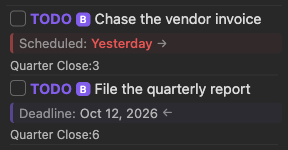
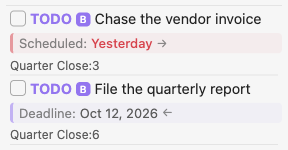
When a task has a warning period set, the task list displays small arrow indicators next to the date:
→(right arrow) on a scheduled date indicates delayed notice — the task appears after the scheduled date←(left arrow) on a deadline date indicates advance notice — the task appears before the deadline
These arrows provide an immediate visual cue that a warning period is active, without needing to hover over the date. The arrows also appear in embedded task lists when date badges are enabled.
Examples
Basic Deadline Advance Notice
TODO Submit grant proposal
DEADLINE: <2026-07-01 Wed -7d>
The task appears in the task list from June 24, giving you a week to prepare.
Scheduled Task with Delay
TODO Follow up with client
SCHEDULED: <2026-06-15 Mon -3d>
The task is scheduled for June 15 but doesn't appear until June 18.
Recurring with First-Only Delay
TODO Weekly team standup
SCHEDULED: <2026-06-08 Mon 09:00 +1w --2d>
The first occurrence (June 8) is delayed by 2 days (appears June 10). All subsequent weekly occurrences appear on schedule with no delay.
Overriding Defaults Per-Task
If your global default deadline advance notice is 5 days, you can disable it for a specific task:
TODO Urgent fix
DEADLINE: <2026-06-20 Sat -0d>
The -0d overrides the global default, so the task appears only on June 20.
Embedded List Override
In an embedded task list, you can override the global settings for just that view:
```todoseq
search: tag:project1
upcoming-period: 14
deadline-warning-period: 5
```
This embedded list uses a 14-day upcoming window and 5-day deadline advance notice, regardless of global settings.